Regain Partner Portal access if locked out of MFA
ENVIRONMENT: Datto Partner Portal
How do I regain Portal access if I am locked out of my multifactor authentication (MFA)?
If you get locked out of your account due to repeated incorrect login credential entry, contact your company's help desk or Security Admin for identity verification and account reinstatement. If you are locked-out, you will see a banner advising you to contact your help desk in the Duo sign-in dialog box.
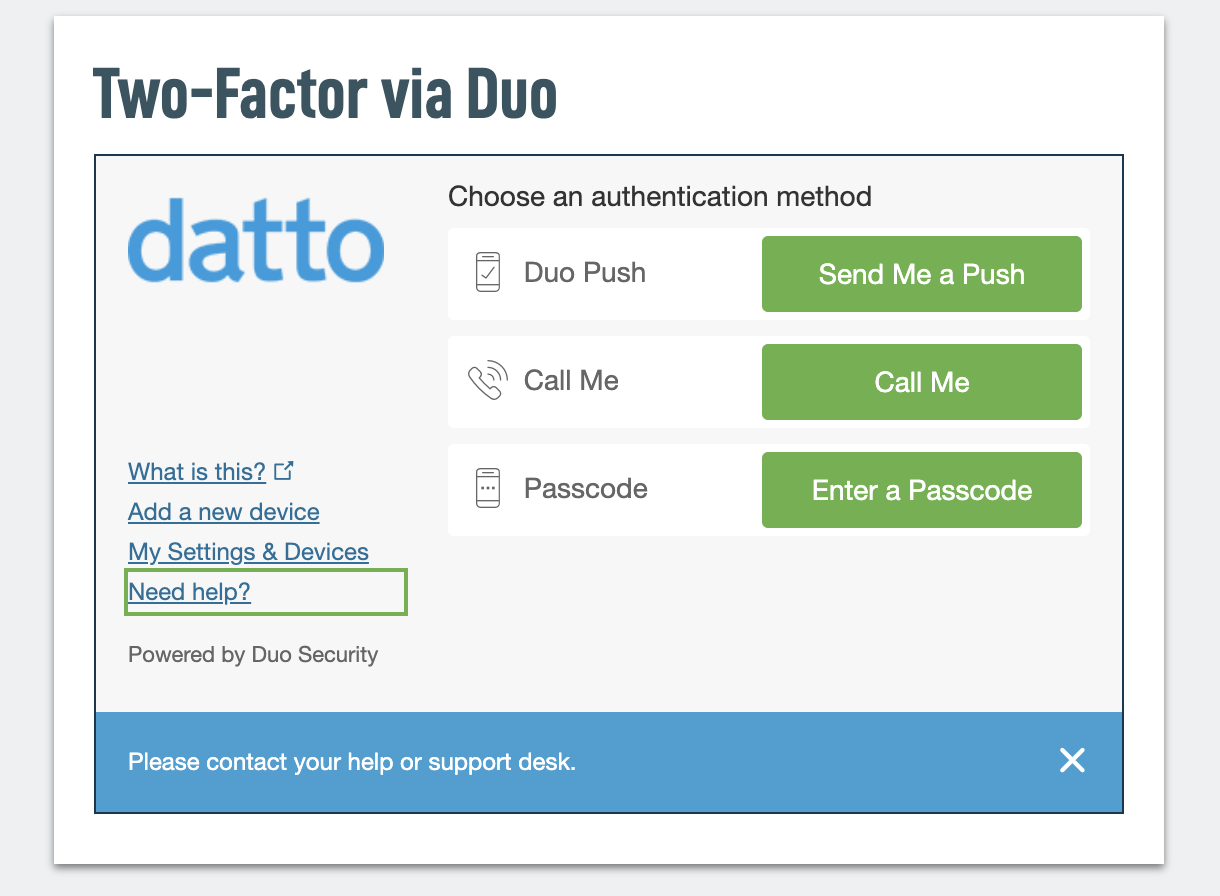
Figure 1: The Duo Sign-in dialog box with help banner
MFA codes not working
If your login credentials are accepted but your MFA verification codes are not working, try the following steps:
- Check the time and date on your device. Time-based one-time passcodes (TOTP) rely on your device clock being accurate. If your phone or computer clock is out of sync, codes will be rejected. Go to your device's date and time settings and enable automatic time sync.
- Make sure you are using the correct account entry. If you have multiple accounts registered in your authenticator app (such as Duo or another TOTP app), verify you are entering the code for your Datto Partner Portal account specifically.
- Wait for a new code. MFA codes expire every 30–60 seconds. If a code is close to expiring when you enter it, wait for the next code to generate and try again.
- Restart your authenticator app. Close and reopen your authenticator app, then try entering a freshly generated code.
- Contact your company's Security Admin or help desk. If none of the above steps resolve the issue, contact your company's Security Admin or help desk for identity verification and MFA re-enrollment. If your company does not have a dedicated help desk, submit a request through Kaseya Support for further assistance.


